HOW TO START
How do I begin working with Audatex?
After receiving login credentials from your Audatex administrator, log in using the link below.
- Access link: https://www.audatex.net/bre
- Username: Enter your username
- Password: Enter your assigned password
How do I create a new case?
Open a new case in the “Case List” tab: Top right.
The Case Details window opens:
Enter the required case information. Only entered data will appear on the printout.
Fields marked with an asterisk are mandatory. Other fields are optional.
How do I identify the vehicle in process?
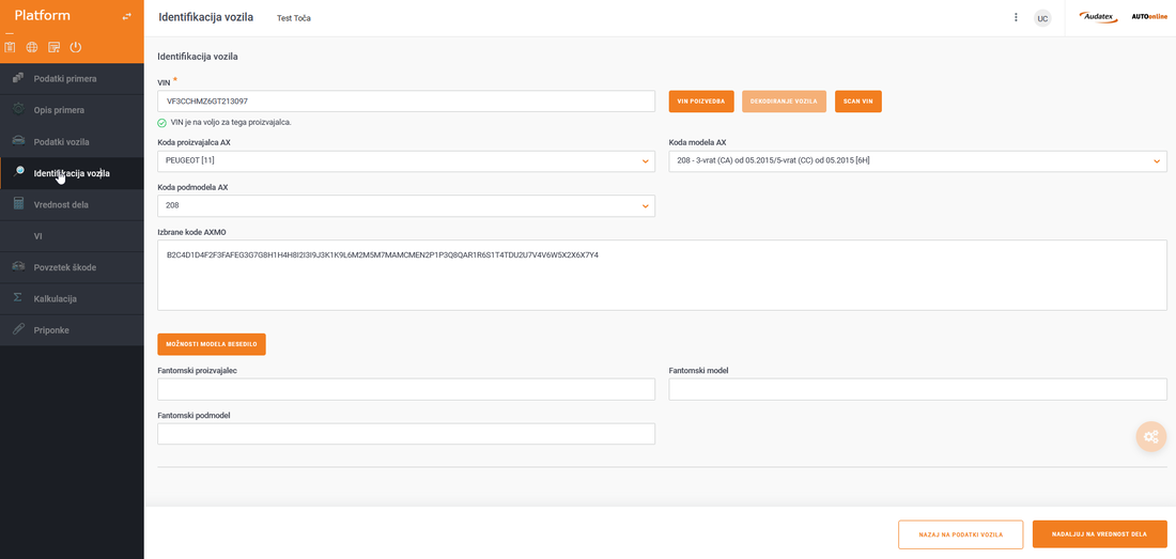
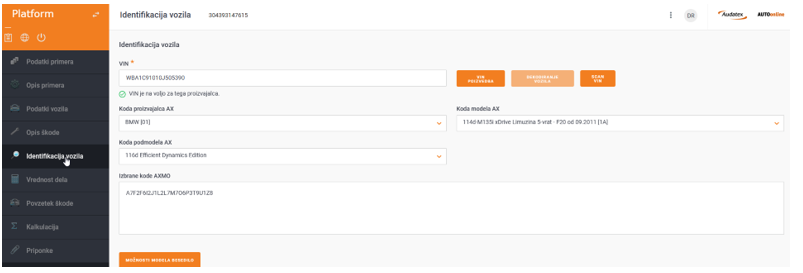
Vehicle identification is mandatory. Option with “VIN lookup” or manual entry.
Where do I select the hourly labor rate?
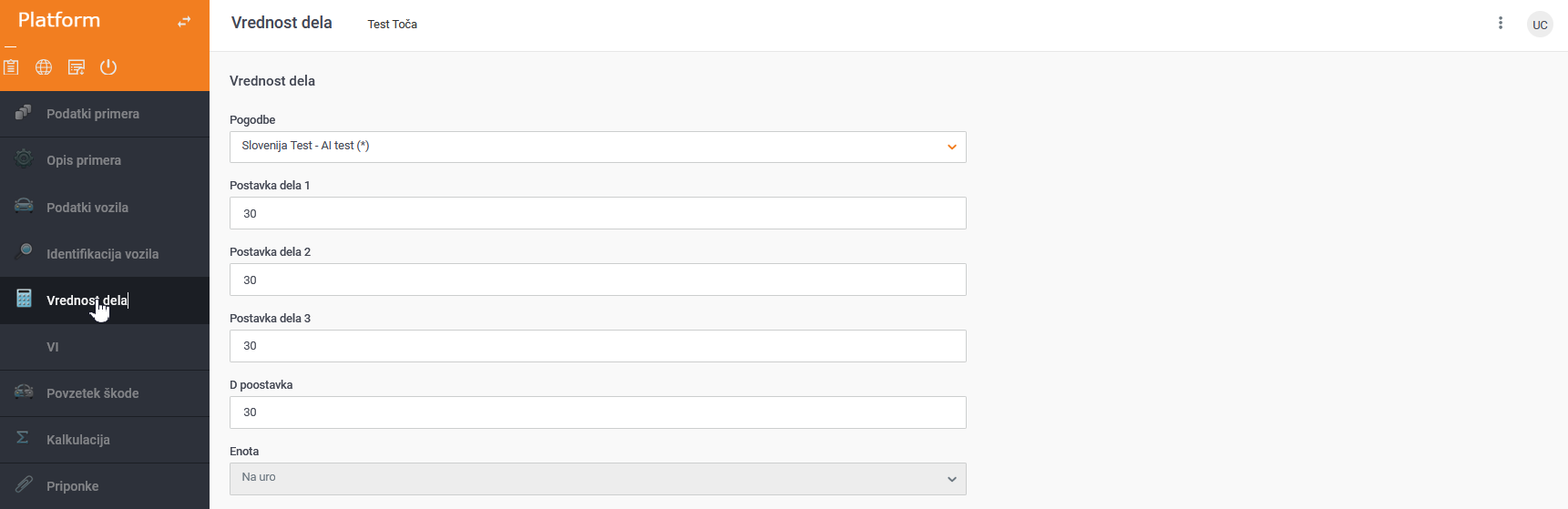
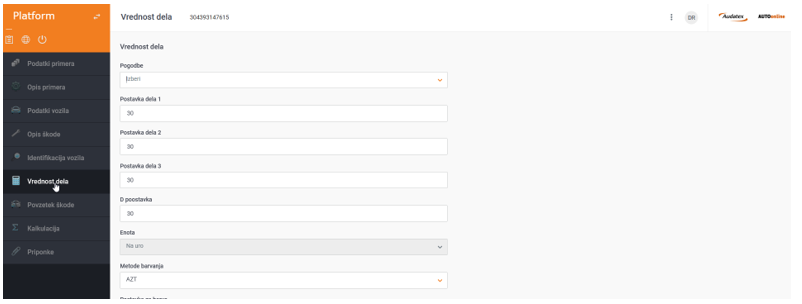
In the “Labor Value” tab, select the desired hourly labor rate.
How do I start adding damaged parts to the calculation?
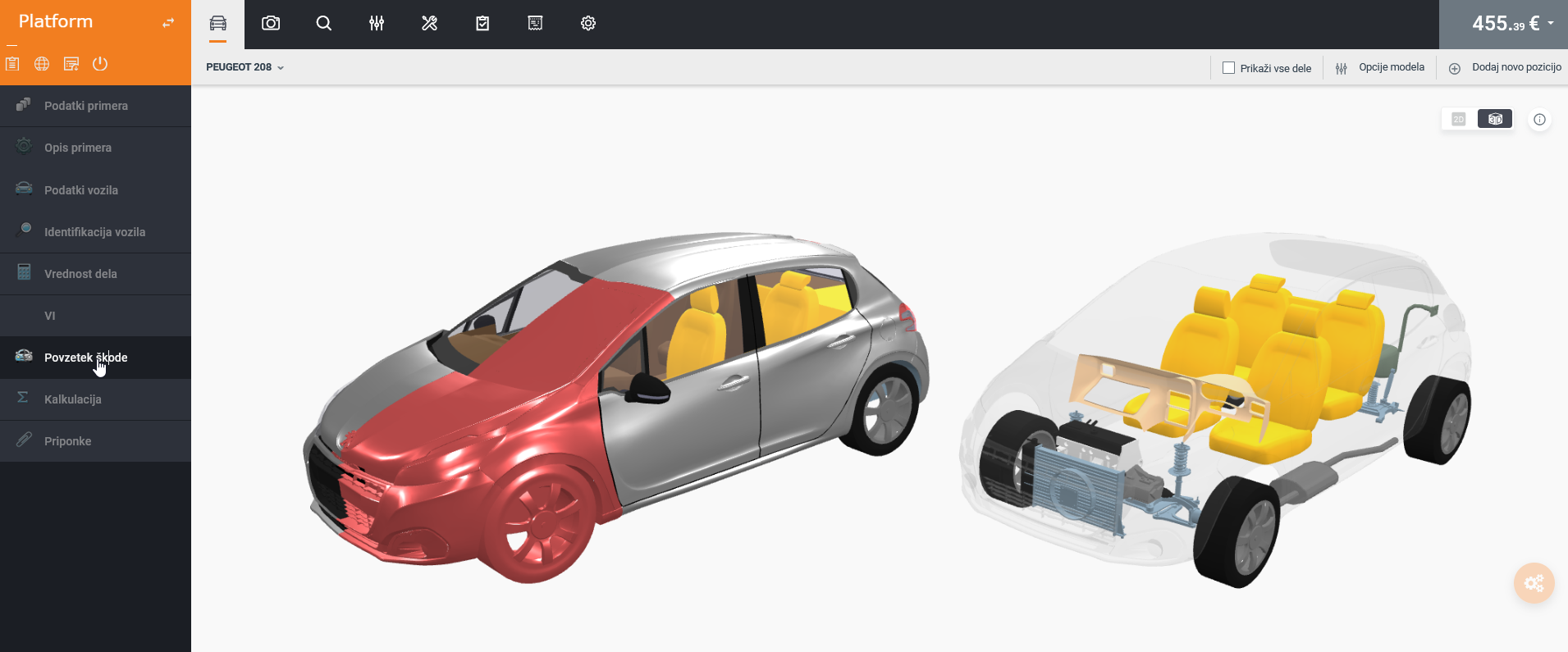
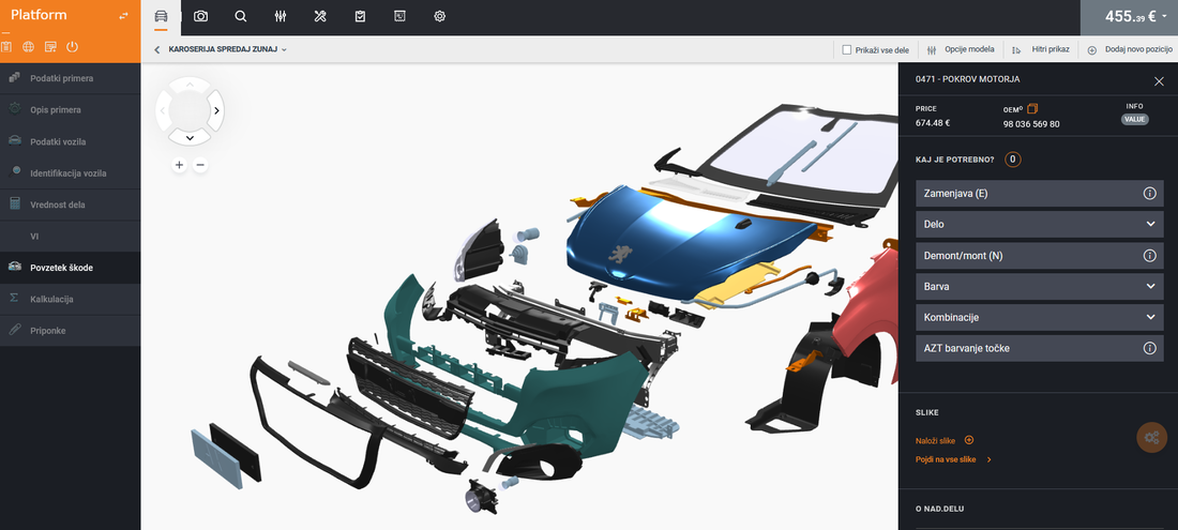
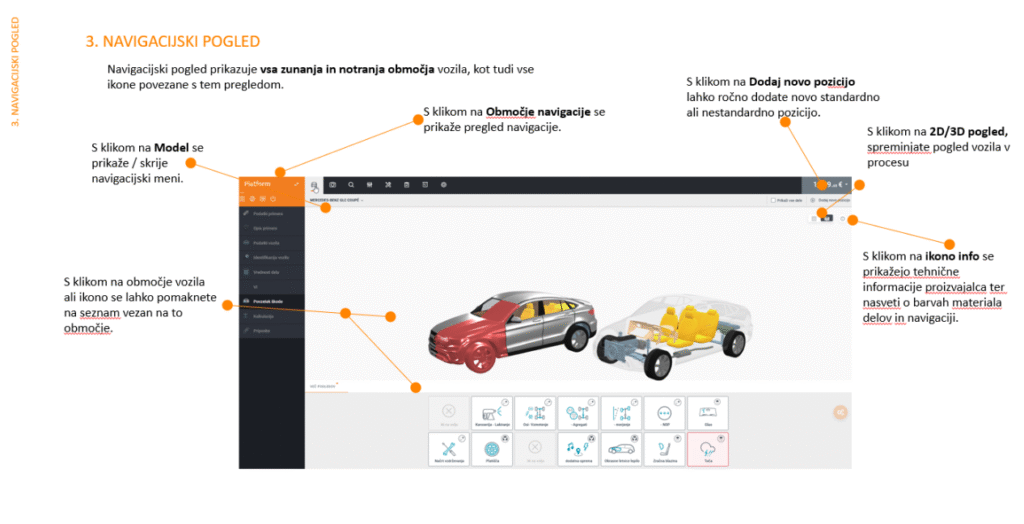
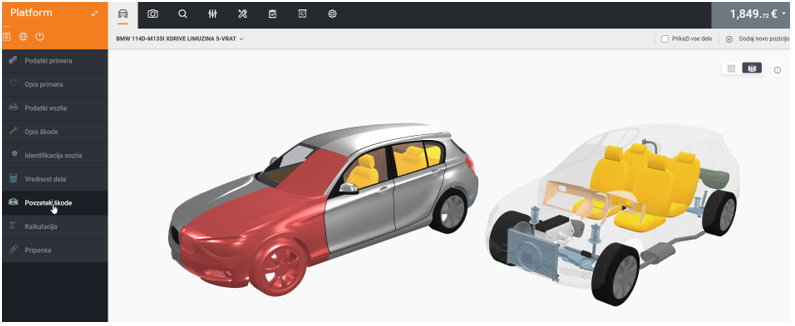
Moving to the “Damage Summary” tab opens a 3D view of the vehicle where you select the damaged section of the vehicle in process.
After selecting a specific part, a menu opens on the right displaying the spare part price, OEM catalog number, and repair method options (replacement, repair, etc.)
Where do I set additional charges for painting and bodywork labor and materials?
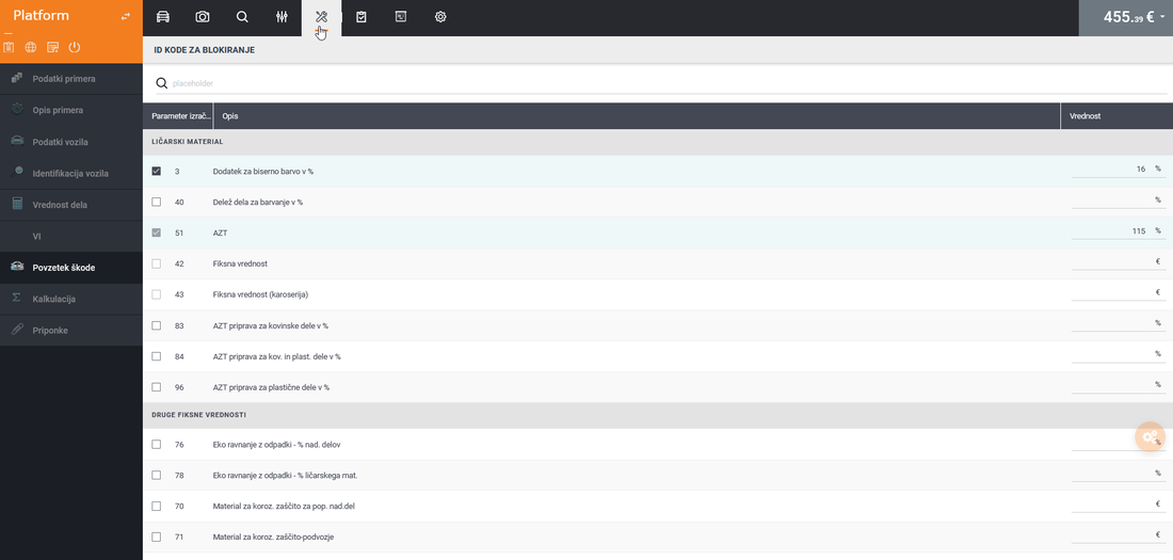
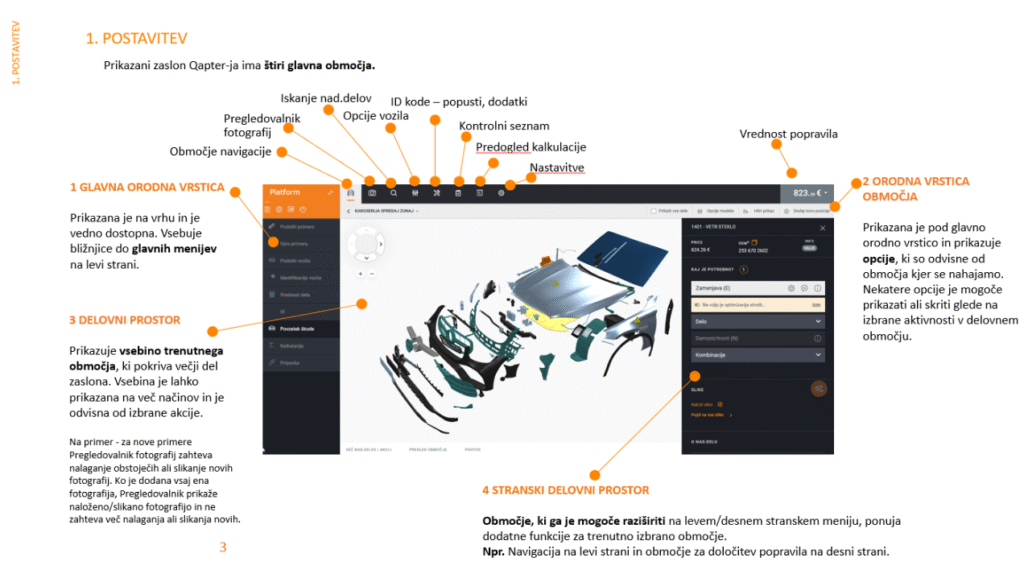
While in the “Damage Summary” tab, navigate to the “BLOCKING ID CODES” button in the top menu, where you’ll find various additional charges that can be used in the calculation.
Where can I check which damaged parts I've added to the calculation?
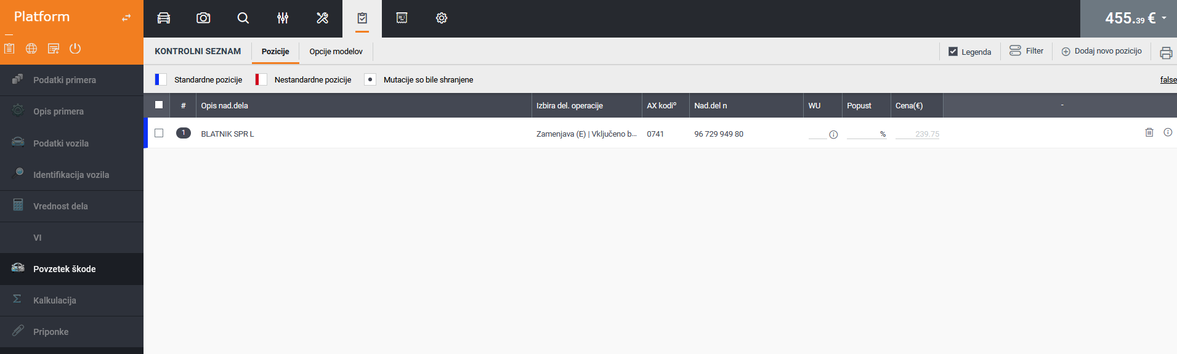
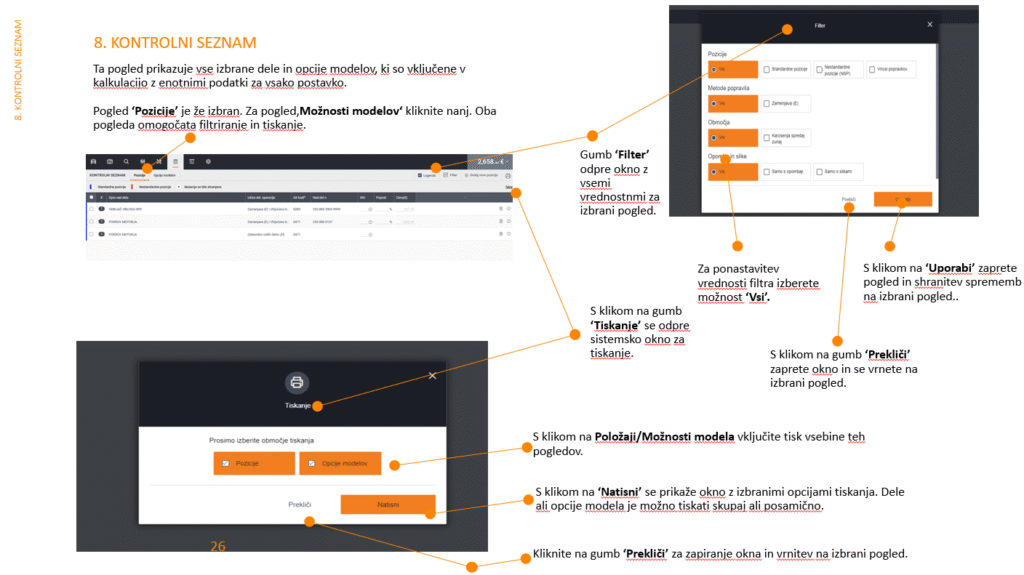
While in the “Damage Summary” tab, navigate to the “CHECKLIST” button in the top menu, where you can review the added parts included in the calculation.
Where can I preview the calculation?
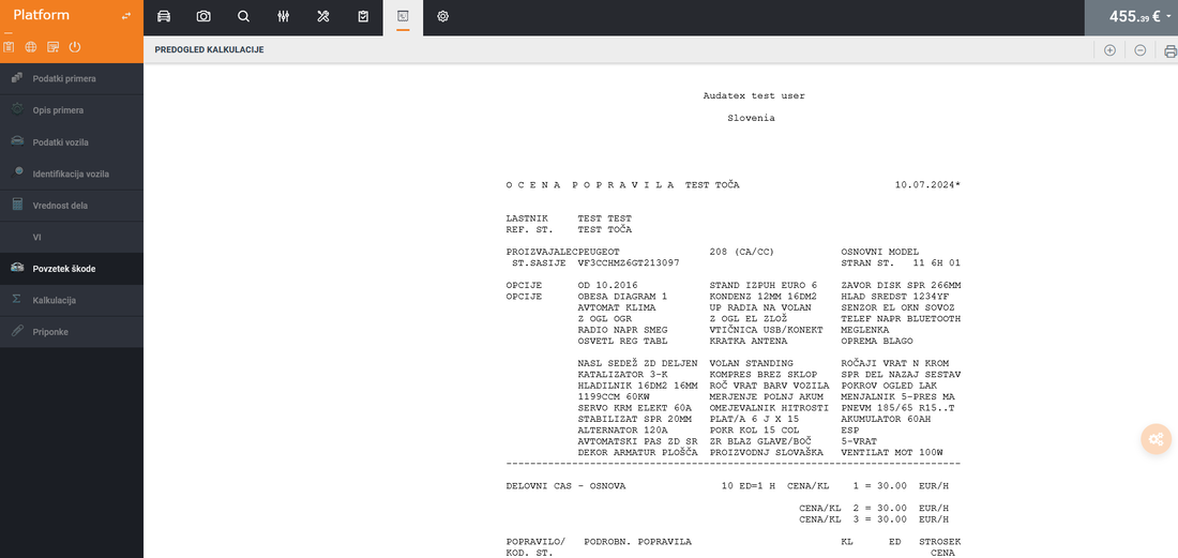
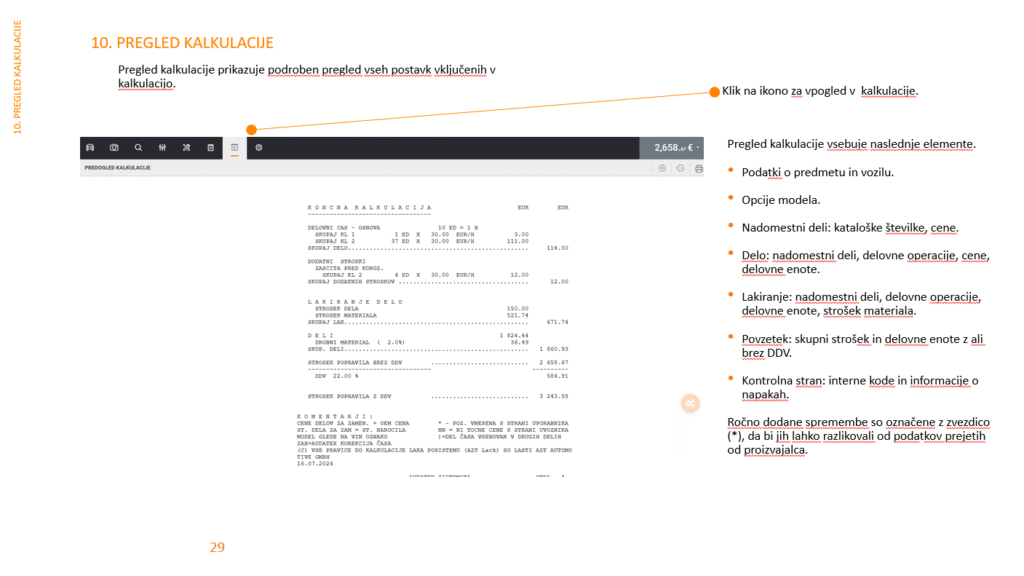
While in the “Damage Summary” tab, navigate to the “CALCULATION PREVIEW” button in the top menu to view a preview of the standard AX calculation, which includes painting costs, small materials, and assembly/disassembly.
How do I create a simplified calculation for the insurance company or customer?
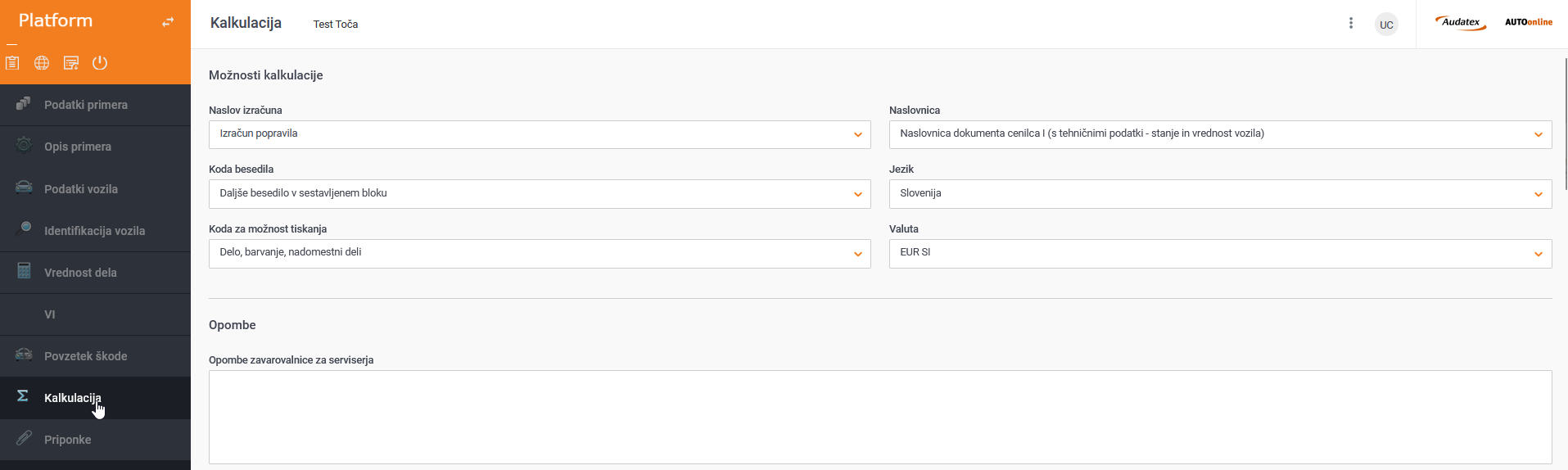
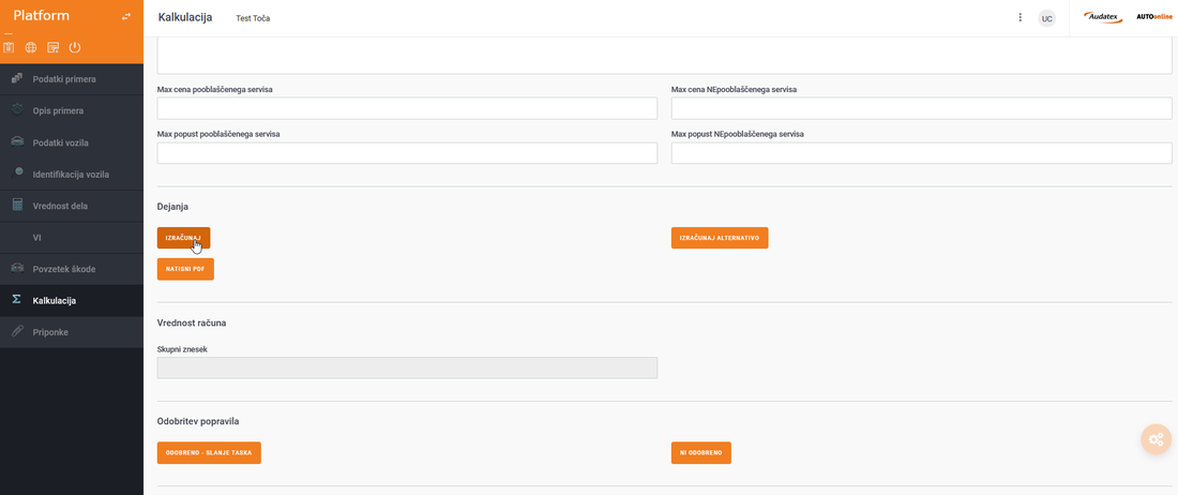
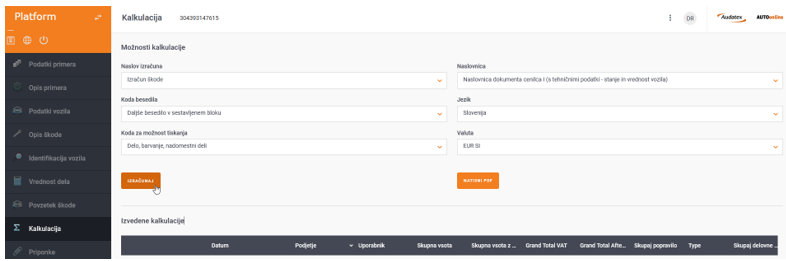
Moving to the “Calculation” tab opens a window where you can select the type of calculation.
Scrolling down, you’ll find the “CALCULATE” button – press it to generate the calculation. Click “PRINT PDF” to create the printout.
Where can I find the completed calculation?
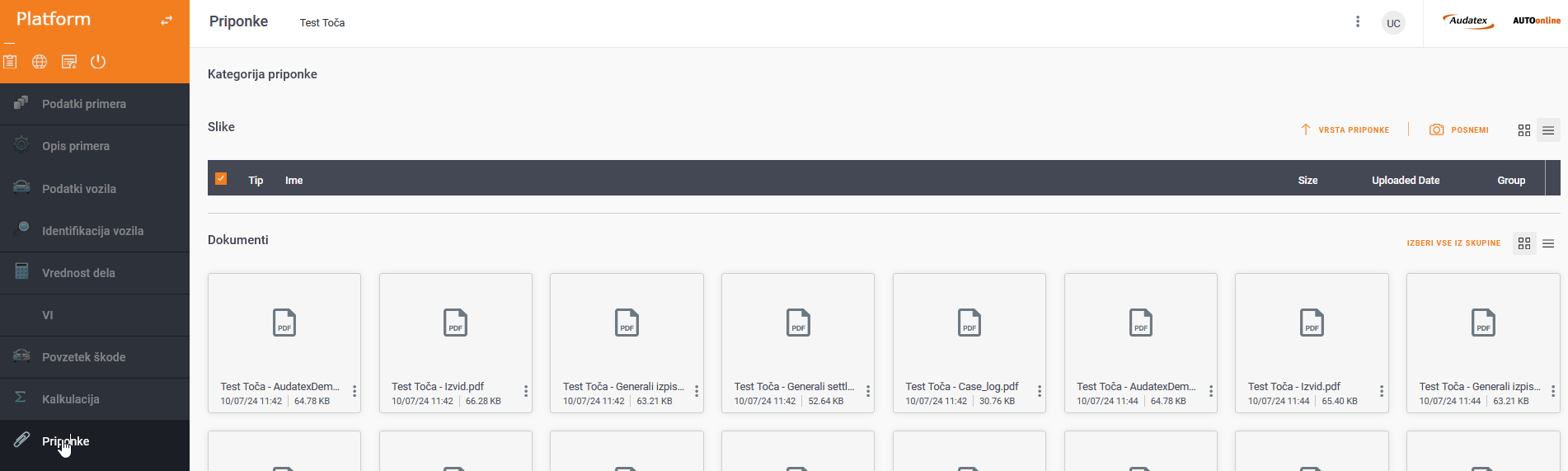
Navigate to the “Attachments” tab to find the simplified calculation intended for insurance companies and customers.
What does the calculation look like and can I customize it according to my needs?
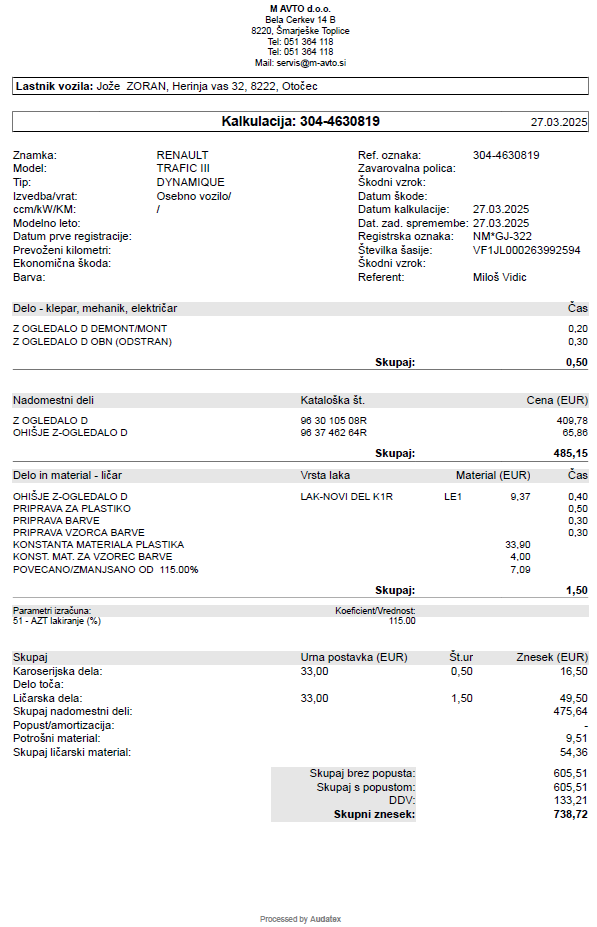
Here is an example of a completed simplified calculation. It can be customized with the issuer’s or your company’s name.
HELP FOR PAINTERS WITH PAINTING, PREPARATION...
Where do I set the type of painting?
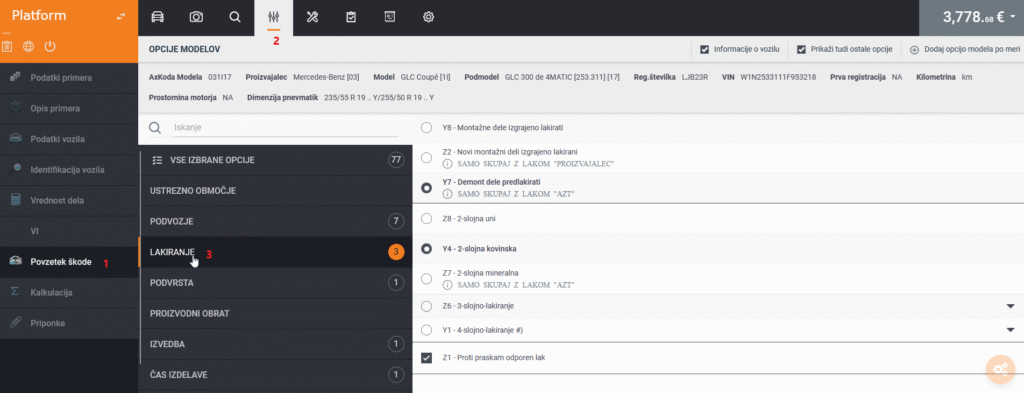
While in the “Damage Summary” menu, navigate to the “Model Options” tab and find the “Painting” setting, where you select the type of painting and related operations.
Where do I set the paint preparation?
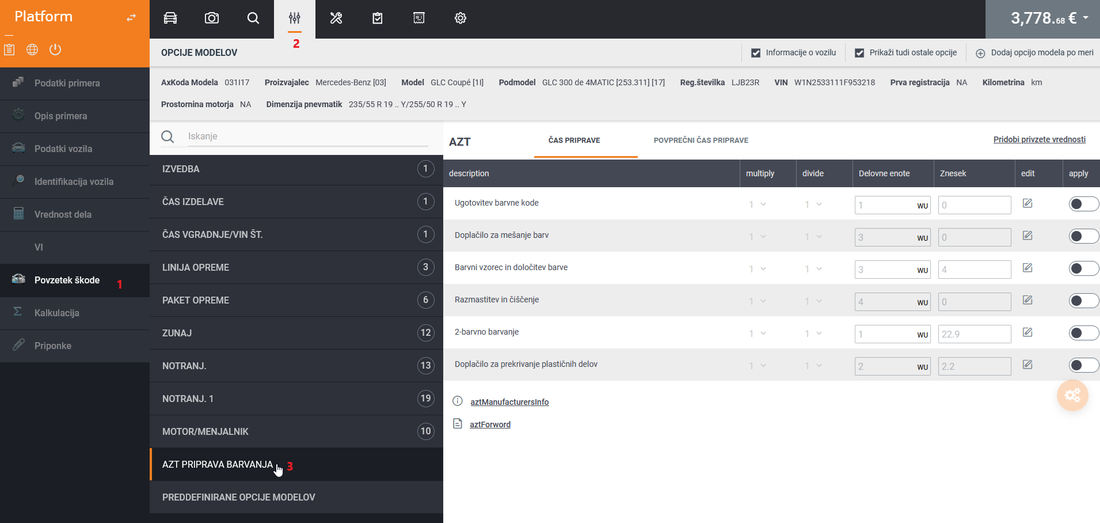
While in the “Damage Summary” menu, navigate to the “Model Options” tab and find the “AZT PAINT PREPARATION” setting, where you enable the required preparation method and determine costs related to paint preparation.
Where do I set various additional charges (pearl effect, sealing, polishing, corrosion protection material)?
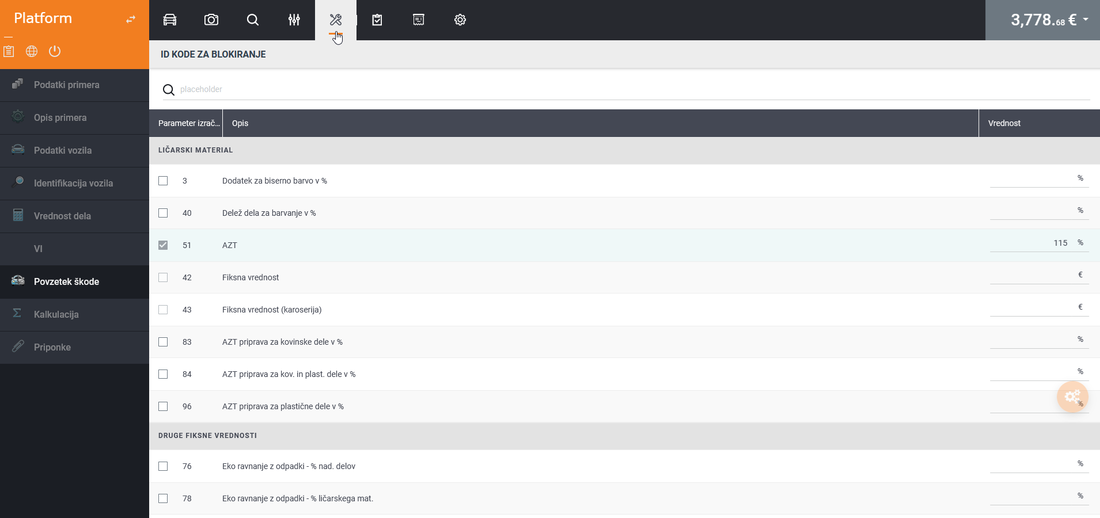
While in the “Damage Summary” menu, navigate to the “BLOCKING ID CODES” tab, where you can choose from various painting materials, additional charges, discounts…
How do we add a non-standard position?
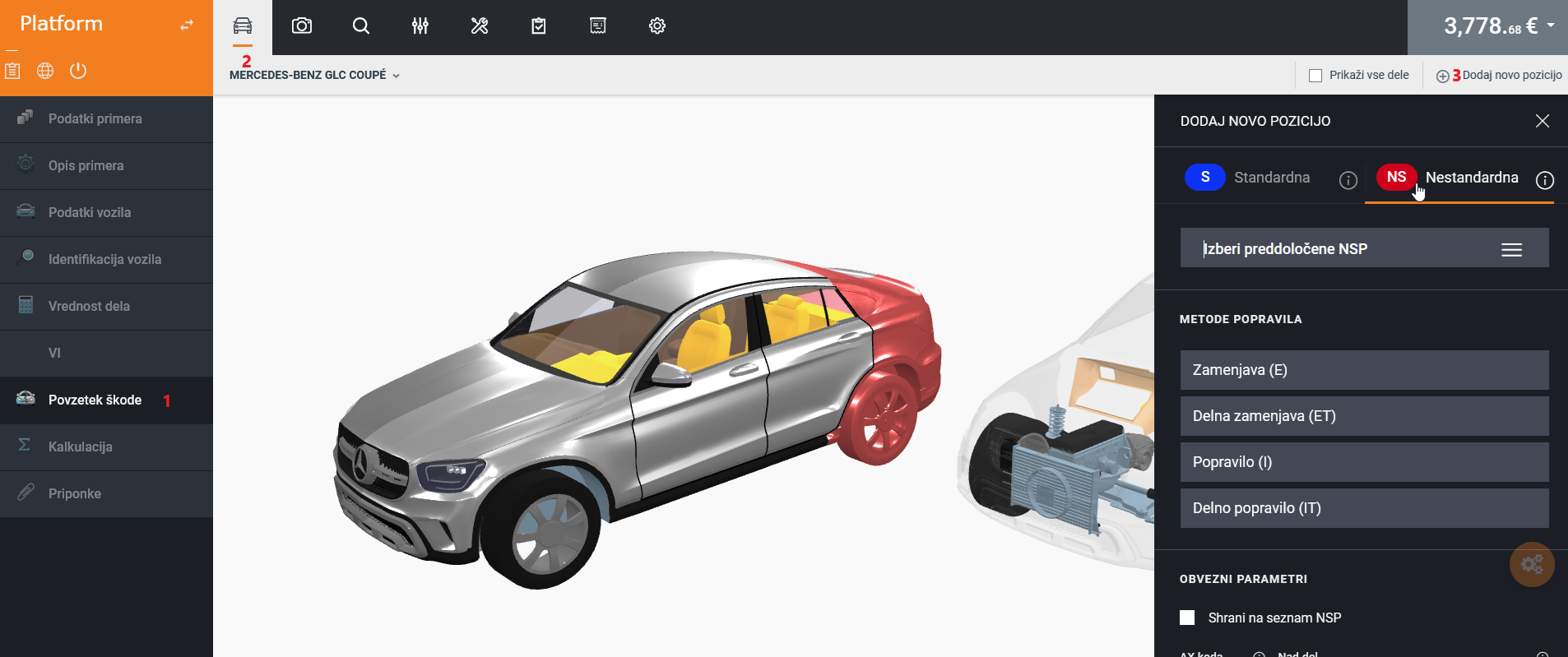
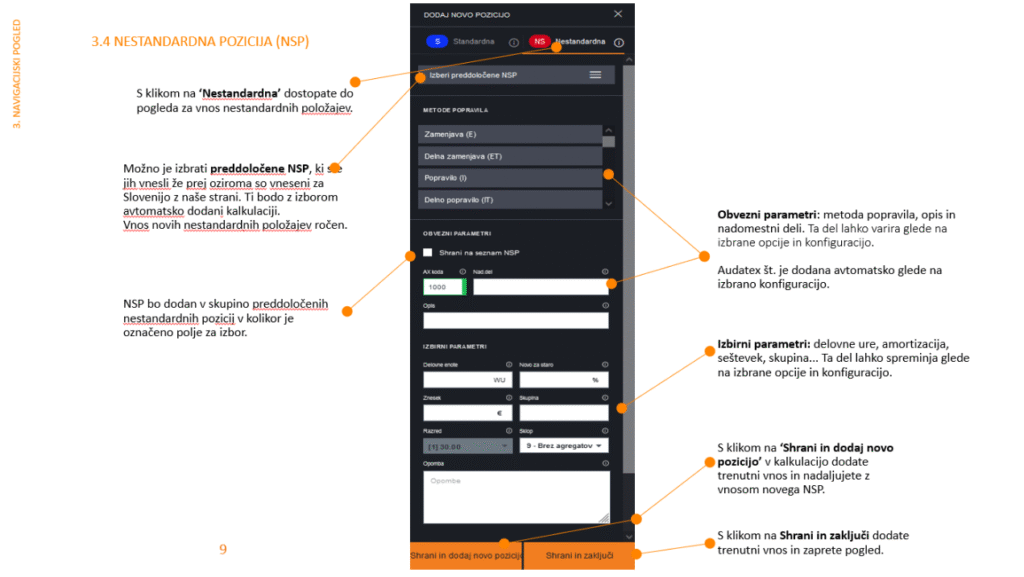
Often, you may want to add a non-standard position to the calculation that isn’t included in factory standards (e.g., joint sealing, broken glass cleanup, sticker removal, drilling holes for sensors…).
While in the “Damage Summary” menu, navigate to the “Vehicle Graphics” tab, where you’ll find “Add New Position” on the right and select “Non-standard”. Specify the repair method, the replacement part it relates to, the amount or labor hours, and describe the operation you want to add. By clicking “Save to NSP List,” this operation is added to the list of predefined operations that you can use for future calculations.
TECHNICAL DETAILS IN THE "DAMAGE SUMMARY" TAB
Command Layout
Command Layout
Zone Overview
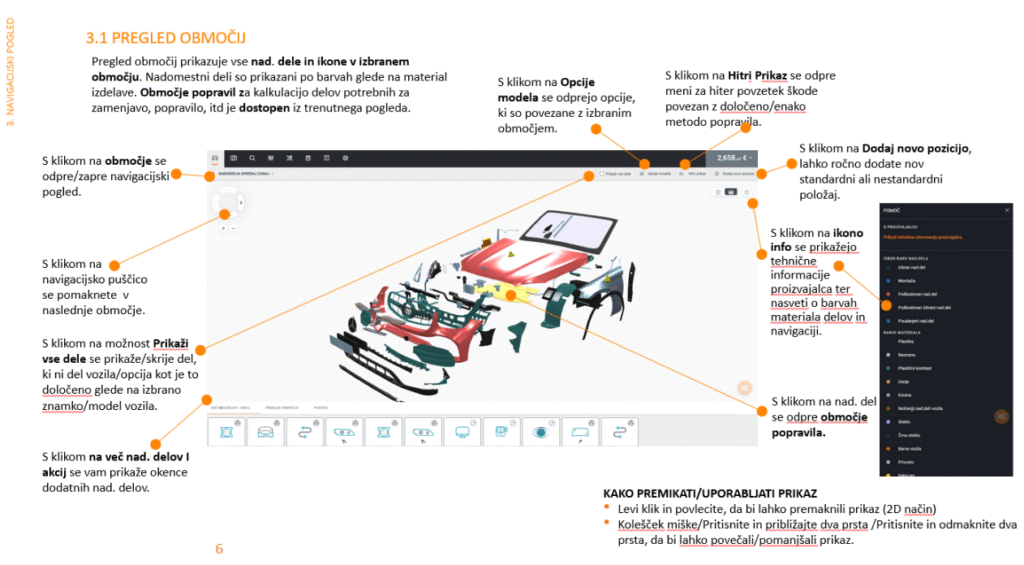
Adding Standard Positions
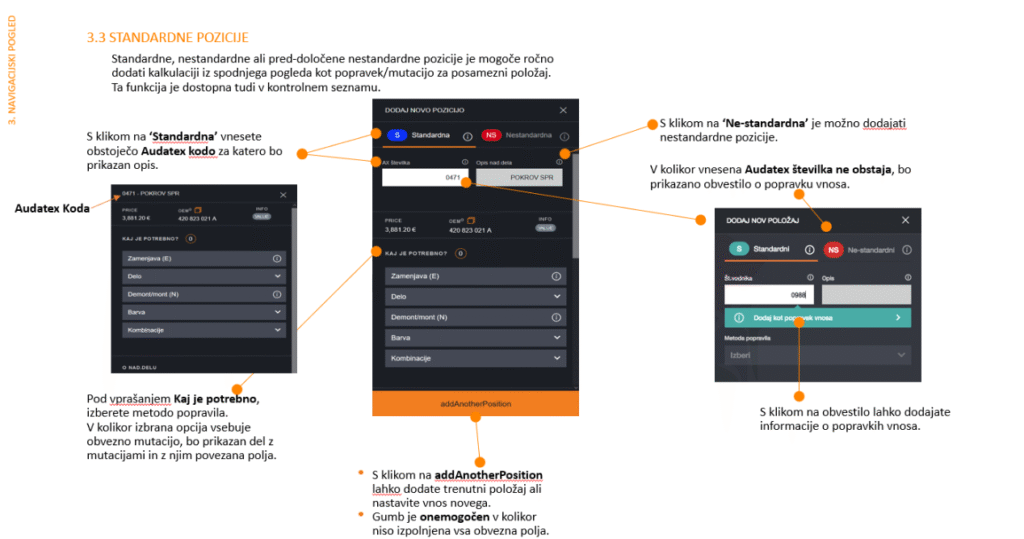
Adding Non-standard Positions
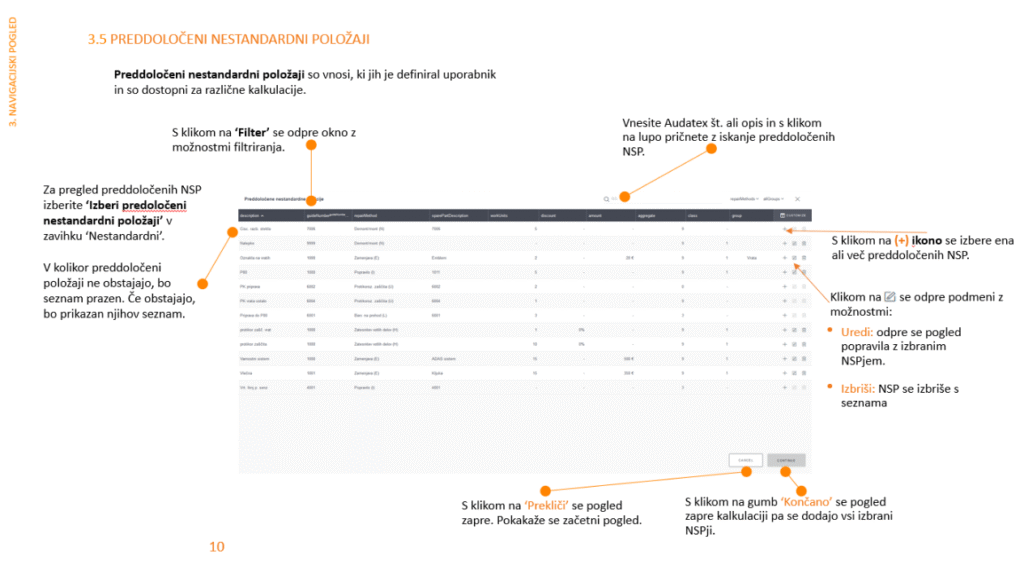
Predefined Non-standard Positions
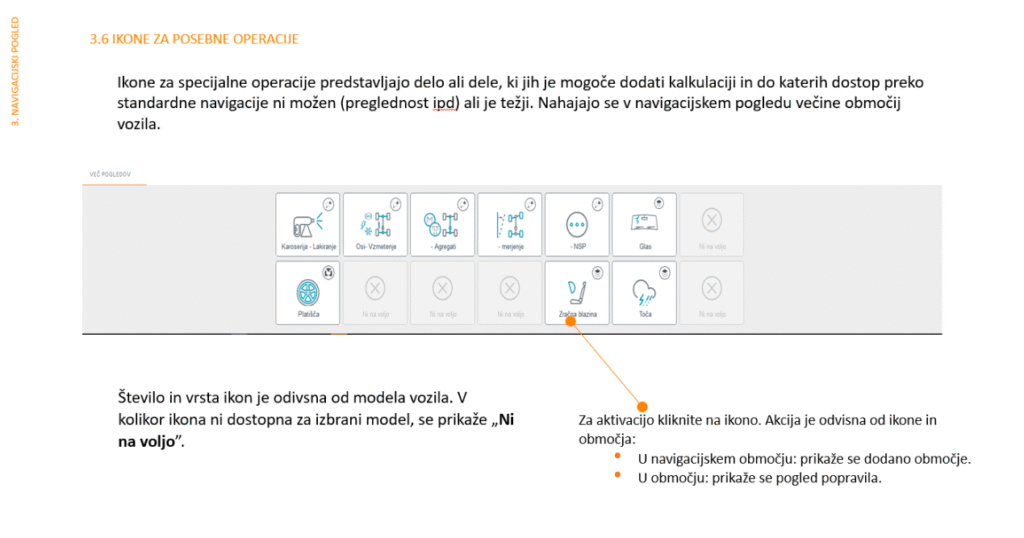
Special Operation Icons
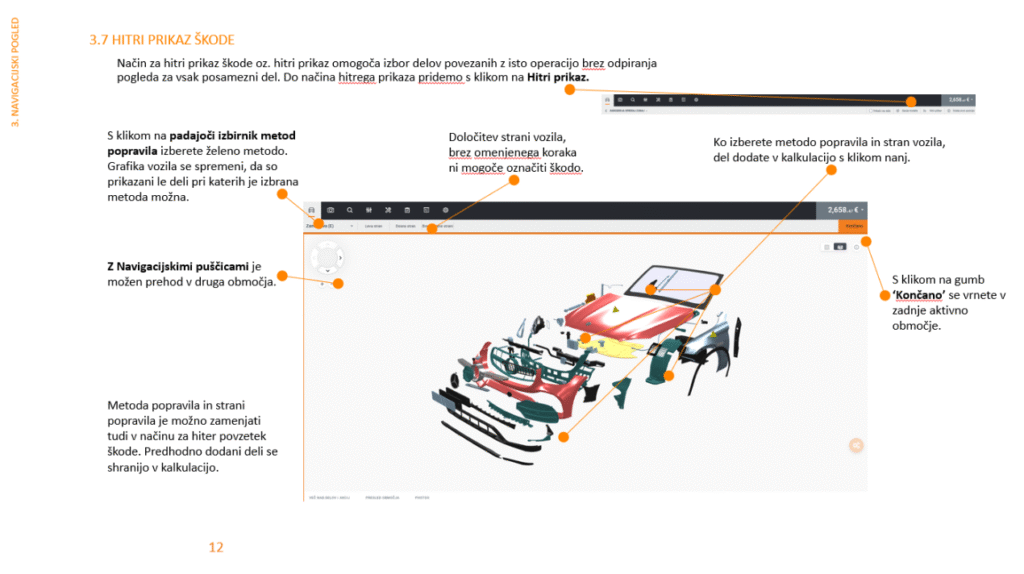
Quick Damage View
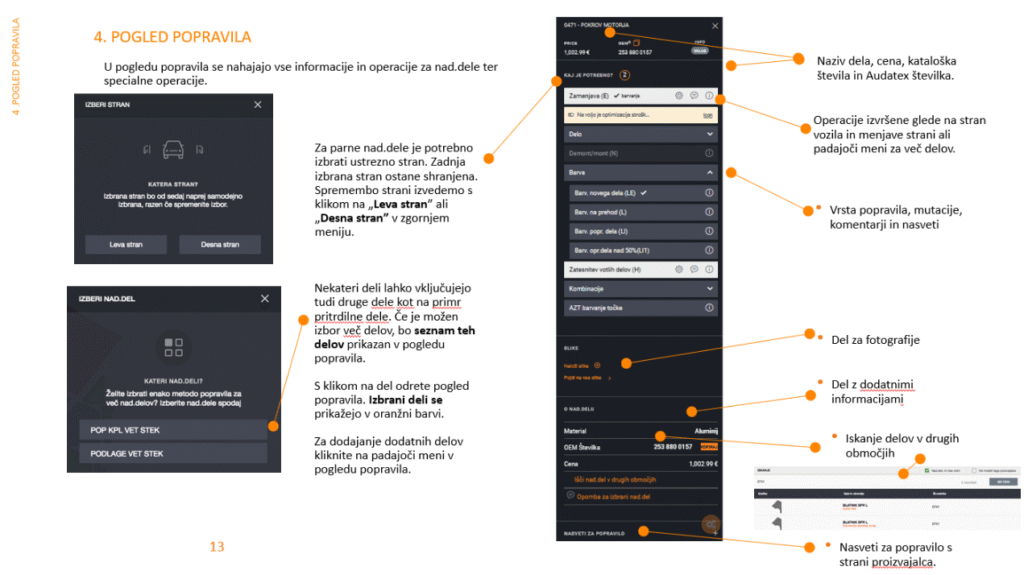
Repair View
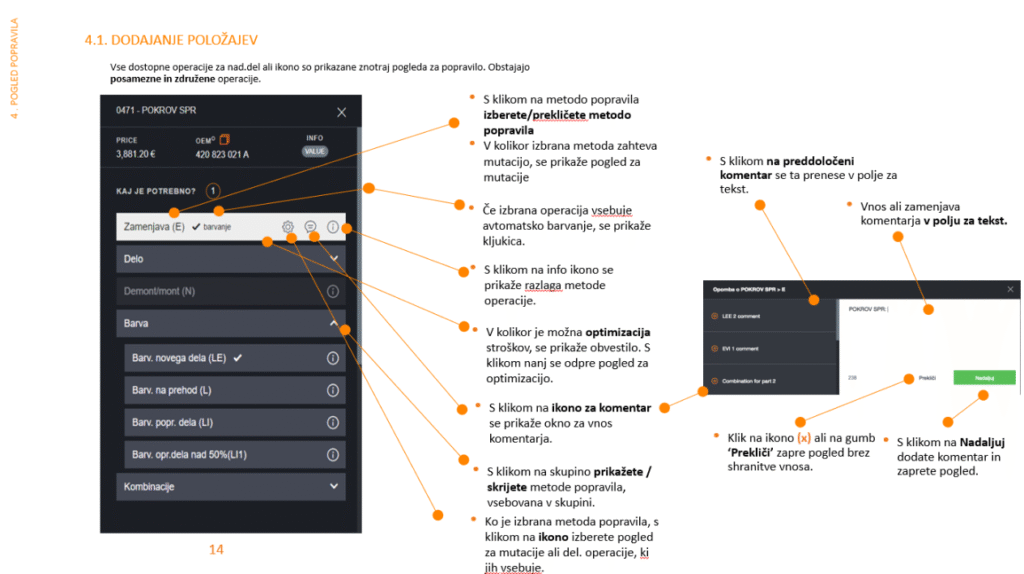
Adding Positions
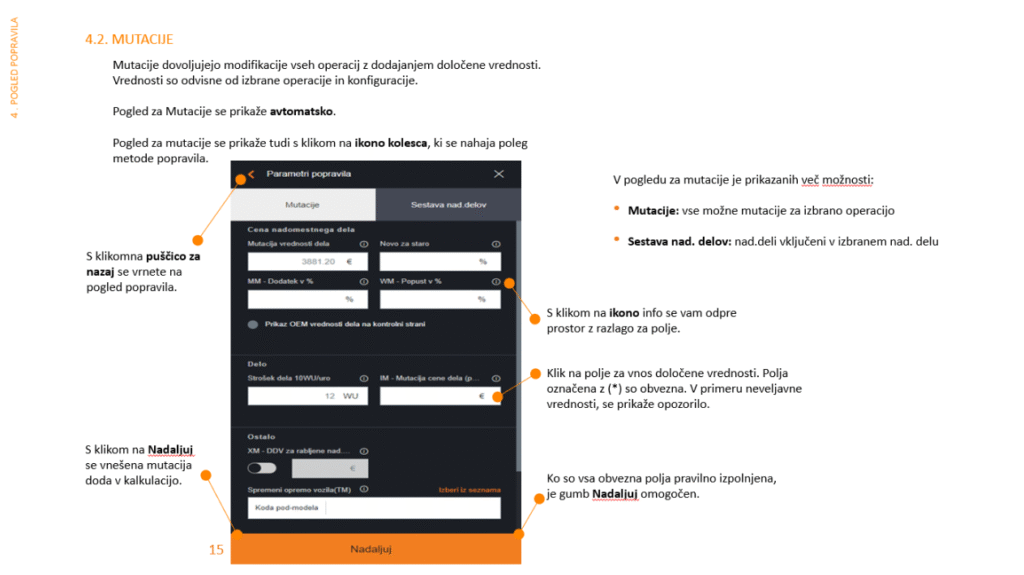
Mutations
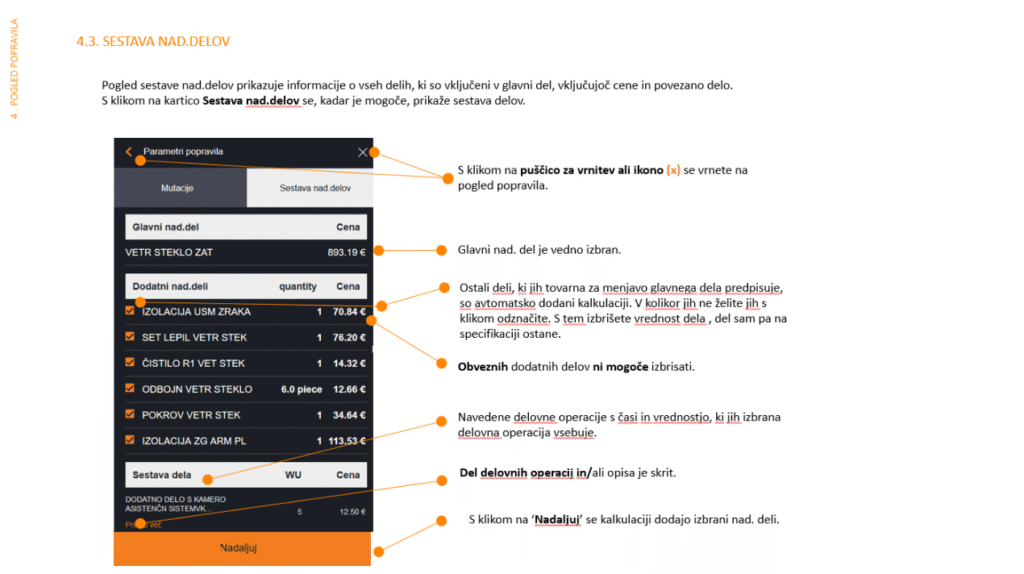
Spare Parts Composition
Cost Optimization
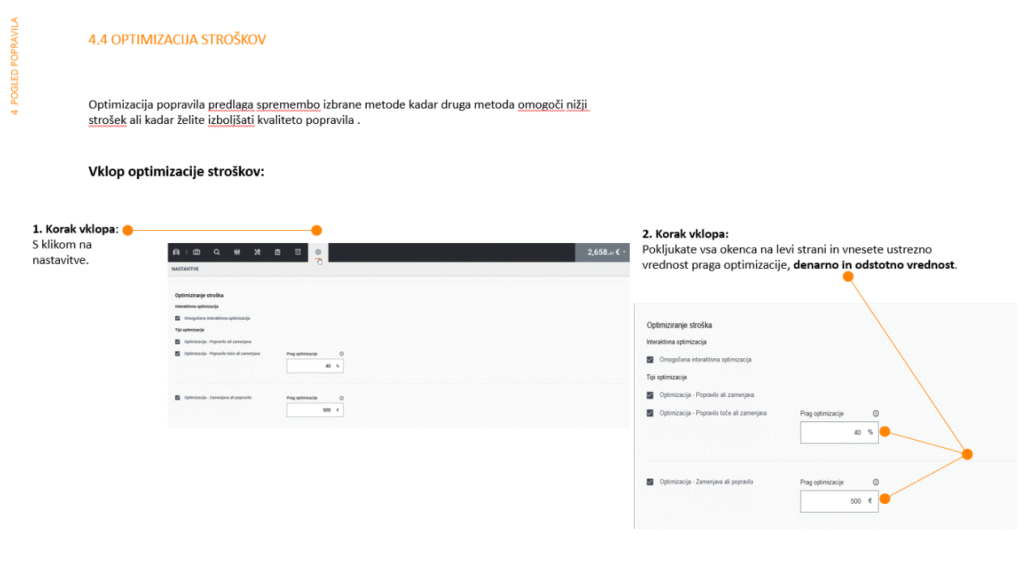
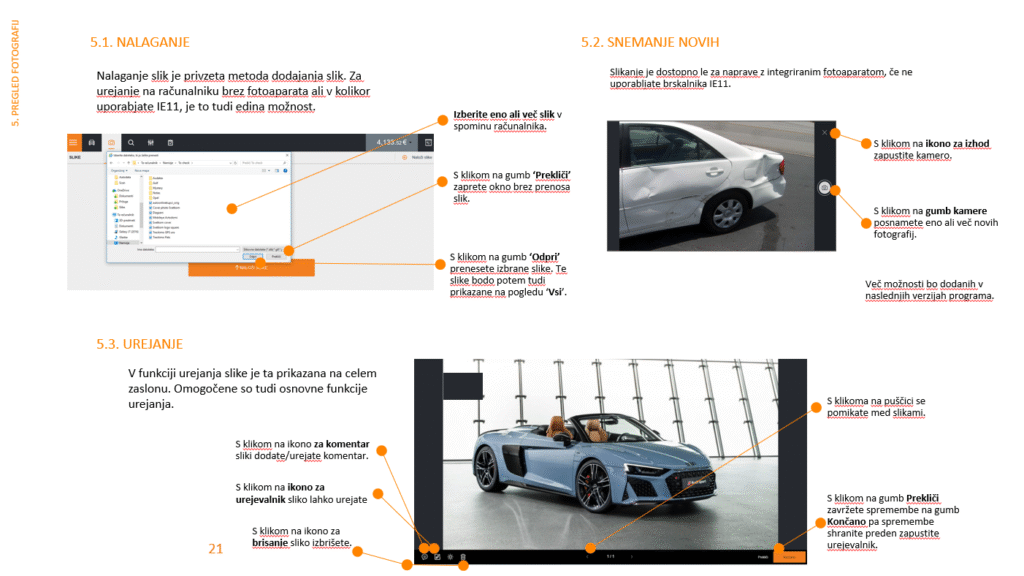
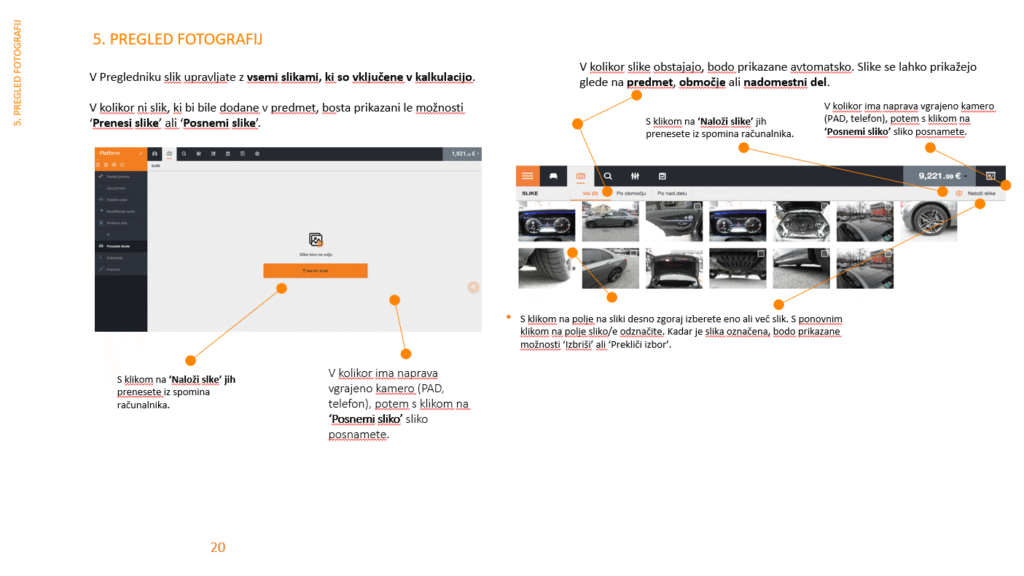
Photo Review and Upload
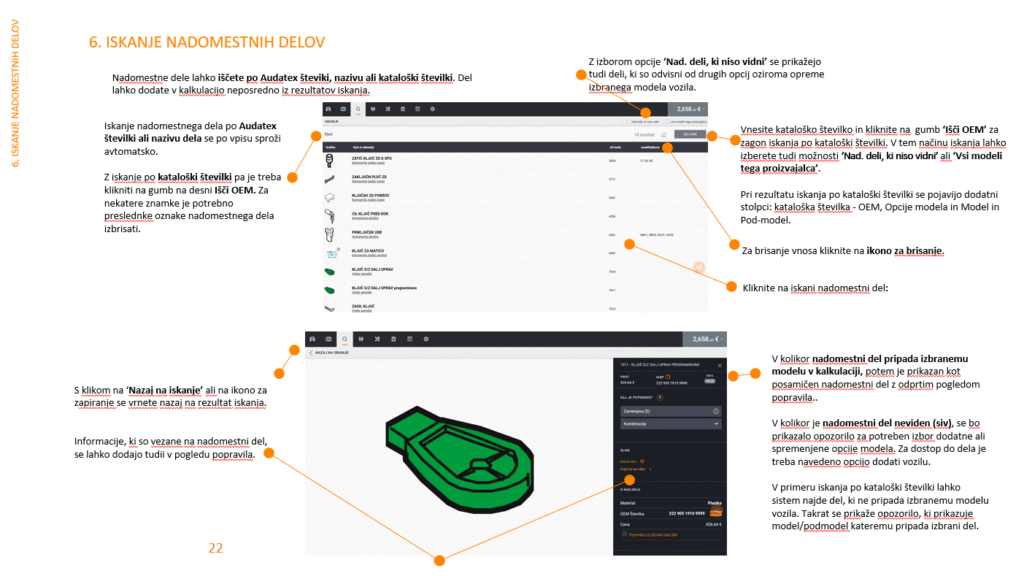
Spare Parts Search
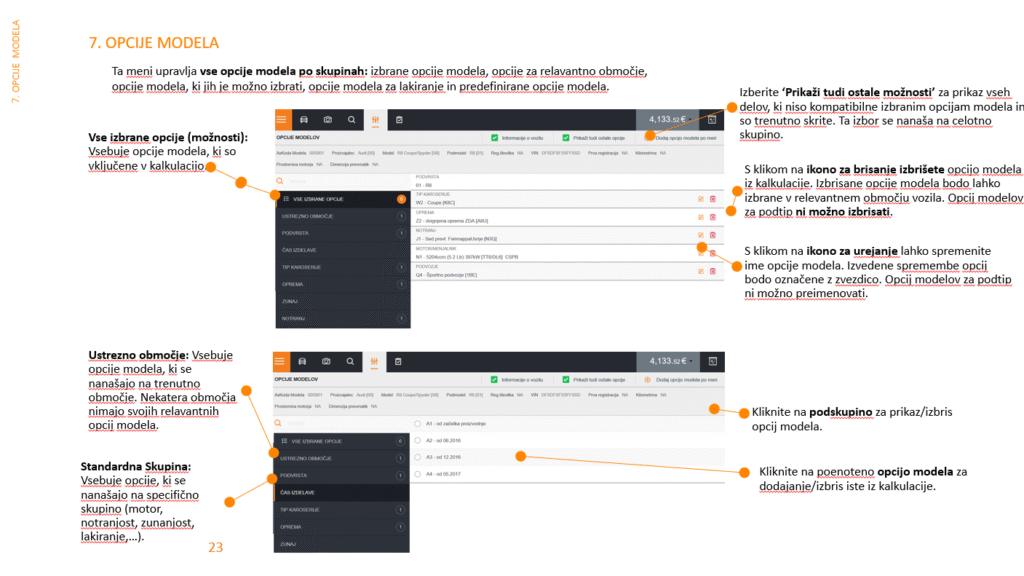
Vehicle Model Option Determination
Checklist
Calculation Preview
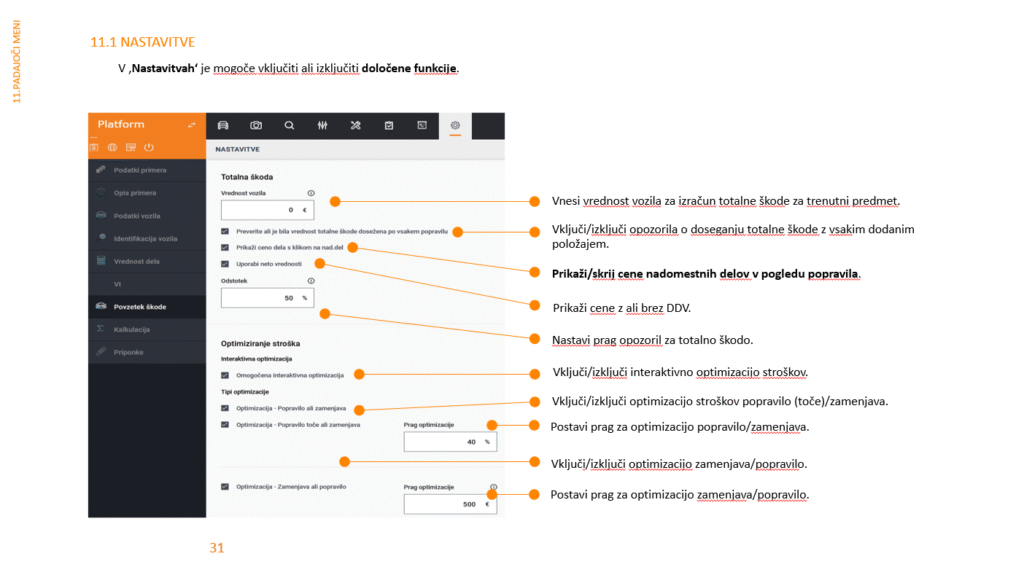
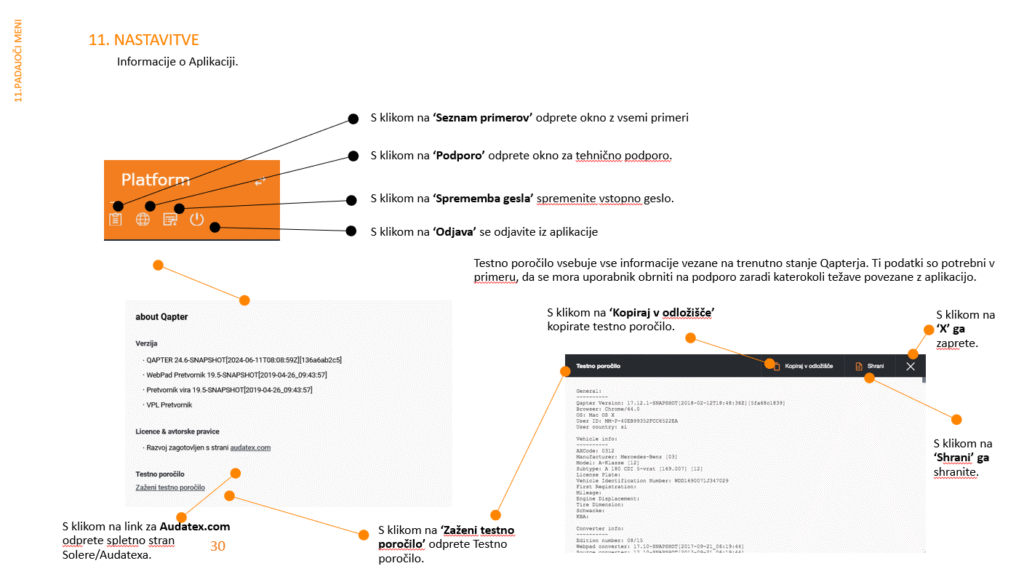
Settings
HAIL DAMAGE INSTRUCTIONS
Which estimation method does Audatex use for hail damage?
Audatex uses the German damage assessment method for calculating hail damage. This means that when assessing damage, it uses an average number of dents typical for hail damage on specific vehicle parts, rather than counting each individual dent. This method is designed to enable faster and standardized assessment, especially for extensive damage from natural disasters like hail.
Audatex uses a database that records average repair costs for specific types and numbers of dents on individual panels. These costs depend on the type of repair:
- PDR method (Paintless Dent Repair) for small and medium dents where repair doesn’t require painting.
- Filling and painting for larger dents or where PDR method isn’t suitable.
Advantages of the German method:
- Speed and efficiency: Since precise counting of each dent isn’t necessary, damage assessment is completed faster, enabling quicker processing of insurance claims.
- Standardization: Due to the use of average values and standardized costs, assessment is more consistent and comparable between different cases.
- Reliability: Because it’s based on long-term data and statistical averages, the method is reliable, especially for extensive damage.
Where do I set the value or hourly rate for hail repair?
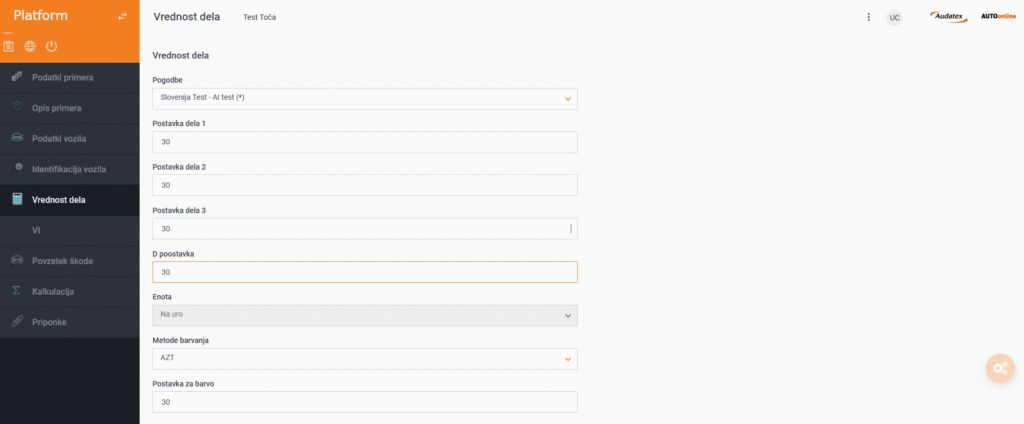
To ensure hail damage repair follows industry standards, the hourly rate should be separate, which is why we added the ‘D rate’ field in the ‘Labor Value’ step, which will only apply when using the hail repair calculation formula.
If this hourly rate hasn’t been entered, the formula uses the hourly rate that was entered for standard sheet metal repair.
After entering the hourly rate, we enter the graphical part of the program ‘Damage Summary’.
Where do I select the repair method?
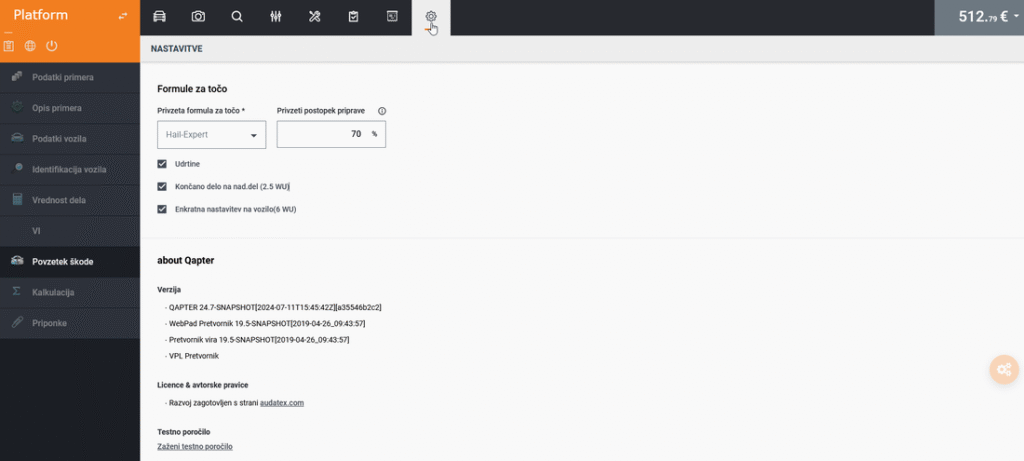
After entering the graphical tool, we move to the ‘Settings’ button where we determine the hail repair formula.
We select Hail Expert Formula and in the field before formula selection, we enter the maximum percentage of work preparation using the PDR method if the part is being prepared for painting. In this example, we entered 70%, meaning 70% of the work is prepared using PDR method, while the rest goes into normal paint preparation.
We mark dent output so the Audatex calculation will show the number of entered dents and their size.
After entry and selection, simply click on the ‘vehicle’ tab above to return to the graphics.
Final work per part 2.5 WU(work units) – select these works for each part separately, but maximum 5 parts per vehicle
One-time setup per vehicle 6 WU(work units) – this additional work can be performed once per vehicle and automatically includes for each subsequent selected part on this vehicle.
After setting all configurations, return to the graphical tool.
How do I determine vehicle hail damage?
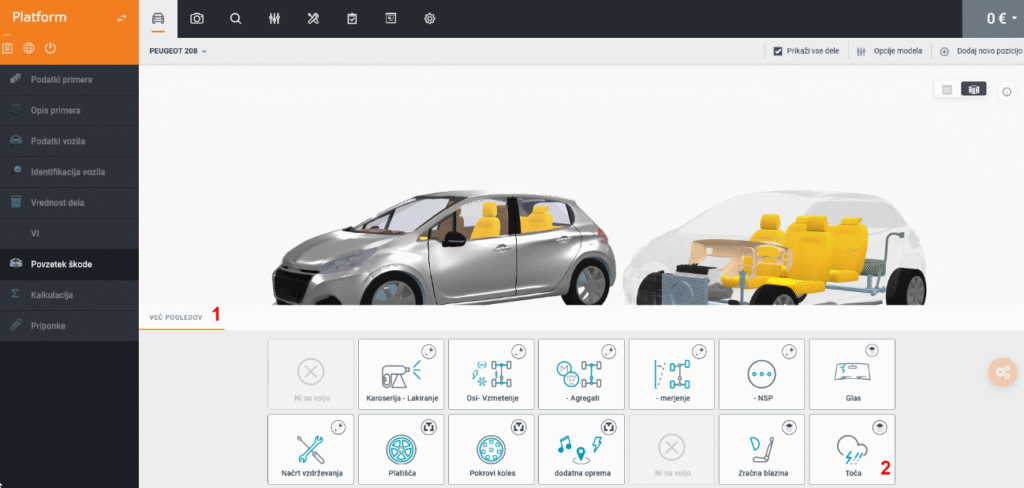
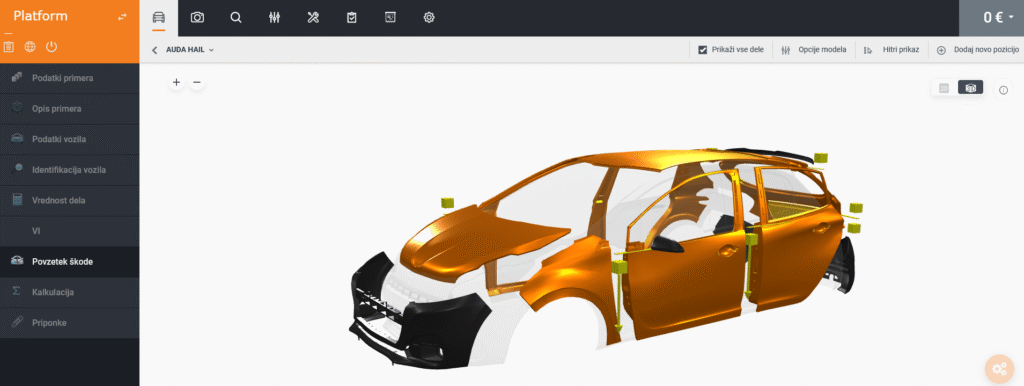
After returning to the graphical part of the program, click on the ‘MORE VIEWS’ option and select the ‘Hail’ section, which opens a vehicle view prepared for damage determination.
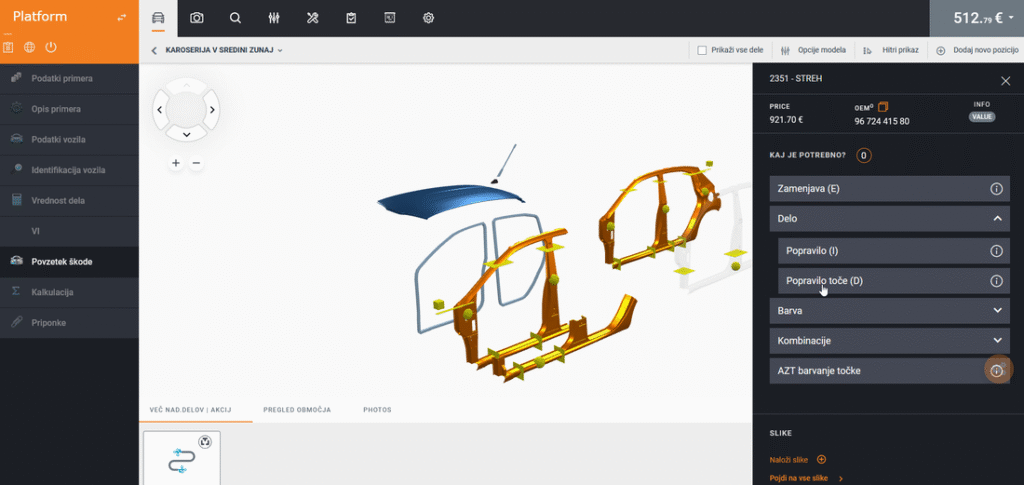
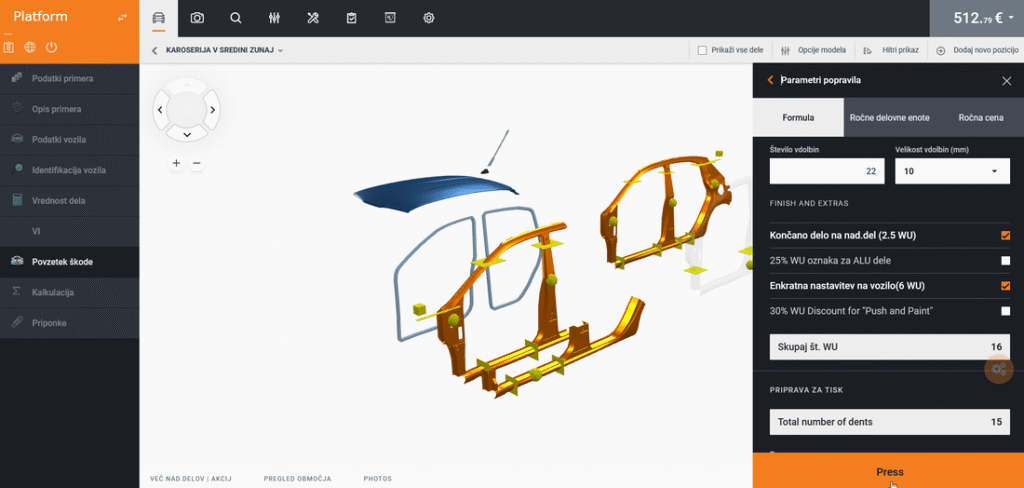
After selecting the damaged part, the repair method panel opens on the right side as usual, where we select Labor and Hail Repair. This selection opens the Hail Formula and we begin entering damage.
IMPORTANT: before determining hail repair, it’s necessary to add/mark dismantling work for the part being repaired – then mark hail repair.
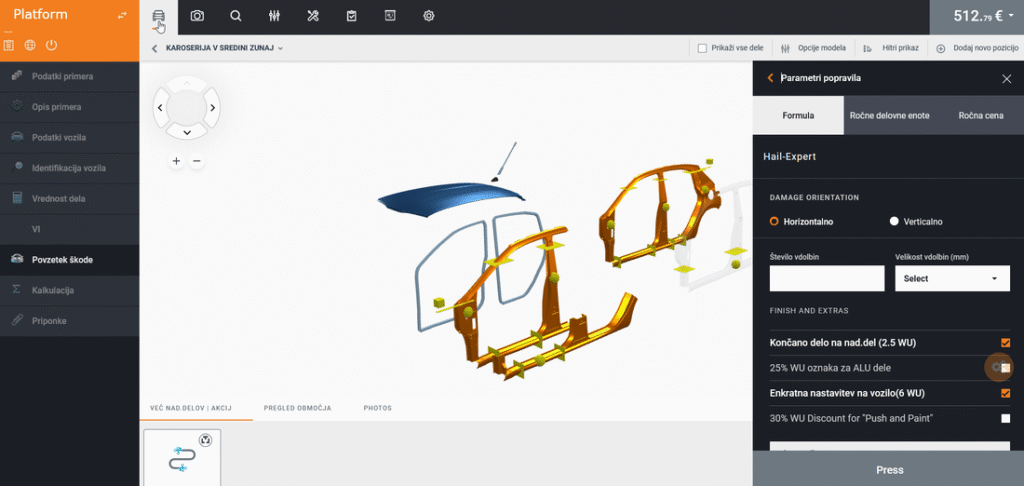
Then select finishing and additional tasks:
1. Final works per part (2.5WU) – select these works for each part separately, but maximum 5 parts per vehicle
2. 25% additional WU for aluminum parts – if our part is aluminum, we can add 25% to the entire part.
3. One preparation per vehicle (6.0WU) – this additional work can be performed once per vehicle and automatically includes for each subsequent selected part on this vehicle.
4. 30% WU reduction for PDR method – NOT USED IN OUR CASE, reduces hourly rate by 30%
INSTRUCTIONS FOR OPERATORS USING AUDATEX ESTIMATION TOOL WITHIN TRIGLAV SK+ ESTIMATOR
Estimator Application Setup
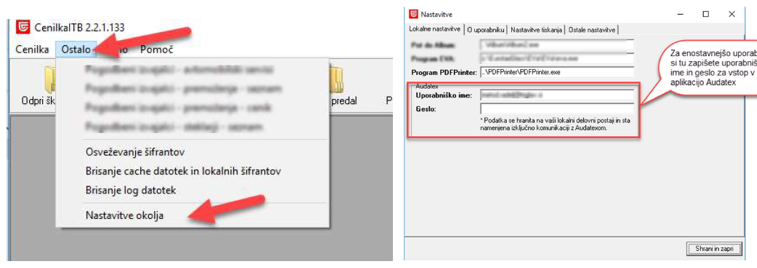
Before first use, we recommend saving your username and password for the AUDATEX repair cost estimation tool in the Estimator.
This data is saved exclusively on your local computer and is intended solely for simplified communication with Audatex.
Set this in the SK+ Estimator application menu, under “Other” and “Environment Settings”
New Case Entry by Service
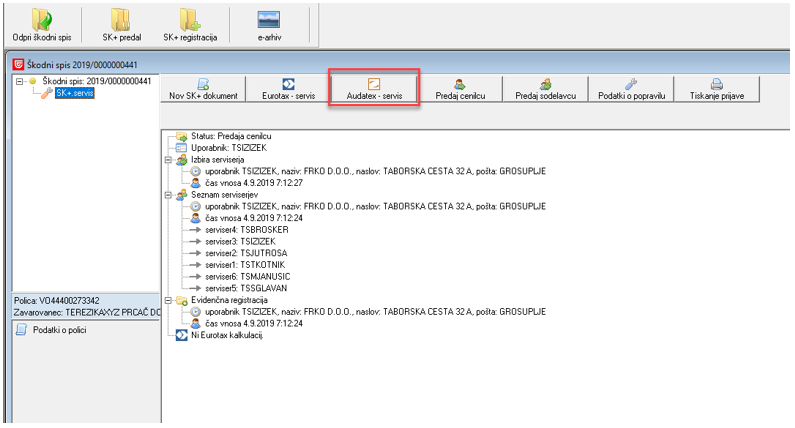
Case is opened by service provider in Estimator, appraiser confirms case
When selecting estimation tool, choose Audatex. Damage is recorded in Audatex and calculation is performed at the end with calculation. Audatex closes and then the process of forwarding to ZT is the same as before.
Editing Data in Audatex
After entering the Audatex tool, the following data needs to be verified:
- Vehicle Identification
2. Labor Value (hourly rates)
3. By clicking on the “Damage Summary” tab, we move to the estimation tool where we mark damaged vehicle parts.
4. By clicking on the “Calculation” tab and clicking the “Calculate” button, we create the calculation and close Audatex
then submit the case via the “Submit to Appraiser” button from the Estimator.
Service Reactivates Case and Submits Claim
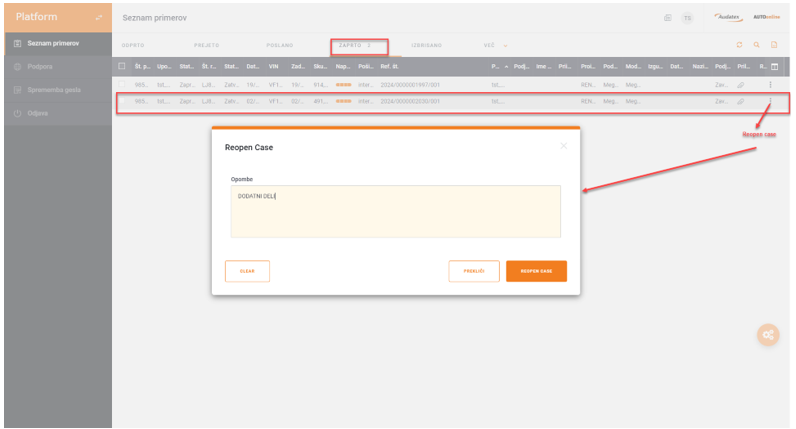
For additional inspection, open the case in Estimator and click on the Audatex icon. In the “Closed” tab, the case opens and must be taken over before desired changes. At the end of the case line we want to reactivate, click on three dots and select “Reopen case”.
Click “Reopen case” and enter the reason for reopening.
Then we can enter Audatex normally and add desired items and new calculation in the same way as with the basic estimation, again forward to the appraiser.
INSTRUCTIONS FOR CREATING VI CALCULATION
How do I create a calculation using VI technology?
The beginning doesn’t differ from a classic calculation. After opening ‘new case’, identify the vehicle based on VIN number and select ‘Labor Value’ for
Set this in the SK+ Estimator application menu, under “Other” and “Environment Settings”
Can I change work methods?
Editing Data in Audatex
- Vehicle Identification
Service Reactivates Case and Submits Claim
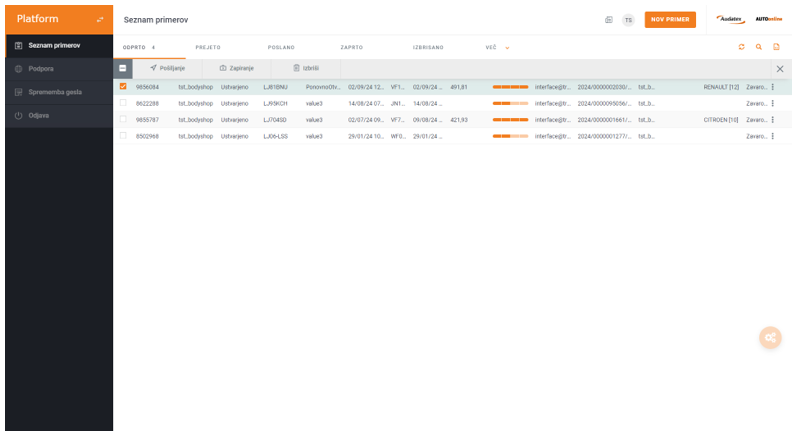
So in case of additional damage, we enter the case that, for example, the appraiser has already
approved. We enter Audatex and find the case, at the end of the case line we want to reactivate,
click on three dots and select “Reopen case”.
Click “Reopen case” and enter the reason for reopening.